- Business cards
- Fair Mode
- Customer tracking
Business card scanner app: from card to customer
What to check in a business card scanner app: accents, corrections, locked cards, export. Scan cards into a customer book, not just iPhone contacts.
Published: · 6 min read
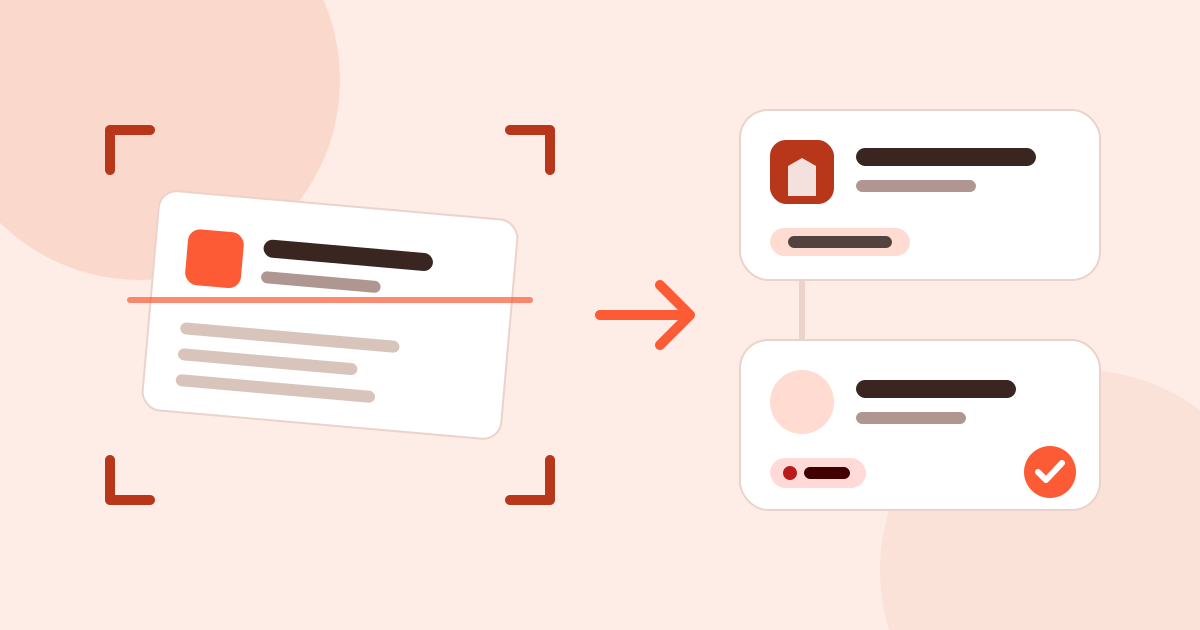
A business card scanner app photographs the card, reads the text on it and opens a contact record. Up to there they are all alike. The difference comes after: does the card stay a name in your phone book, or become a customer with a company, a place where you met and a next step? This post covers what to check in a business card scanner app and how a card becomes a customer record in Musteri.
What a business card scanner app does
Most apps follow the same three steps:
- Capture the card. The camera finds the edges and corrects the perspective.
- Recognise the text. Text recognition (OCR) reads the lines on the card.
- Split it into fields. It decides which line is the name, the title, the company, the phone or the email.
The third step is the hard one. Phone numbers and emails are easy to recognise; telling a name from a title, or a company from its slogan, depends on the layout of the card.
What to check before you choose
Four complaints stand out in store reviews of business card apps:
- Cards with accents and non-English names. A user wrote that Turkish support was weak and most cards needed corrections (ABBYY BCR, App Store TR, March 2024, reviews); another could not get a Turkish card read correctly (Zoho Card Scanner, Google Play, December 2024, review).
- Fixing takes longer than typing. A user said correcting the mistakes took longer than typing the card from scratch (ABBYY BCR, App Store US, November 2025, reviews).
- Locked cards. A user describes losing access to saved cards without the subscription (CamCard, App Store US, September 2026, reviews).
- Export. A user could not export cards to CSV or Excel (ABBYY BCR, App Store US, January 2026, reviews).
Four questions follow:
- Try a card with accented characters: do “Şişli”, “Ağaoğlu” and “İç Ticaret Müdürü” come out right?
- Can you see the recognised fields before saving and fix them with one tap?
- Is there a limit on scans or saved cards? What happens to old cards after the limit?
- Can you take all your cards out as CSV or vCard, for free?
To the phone book or to a customer book
A business card organiser keeps cards as a tidy phone book. That is enough for finding a name among cards. If you sell, a card comes with more than a name:
- The company. If you took three cards from one company, that is one company and three contacts, not three separate people.
- Where you met. Which fair, which visit, which meeting.
- What you discussed. A sample, a price list, a promise to visit.
- When you will get back. A date and a reminder.
The phone book keeps few of these. So it is better to take the card into a customer book first and send it on to your contacts from there when you need to. That loses less.
How a card becomes a customer in Musteri
In Musteri, business card scanning is part of the customer record:
- Scan. The phone scans the card like a document and recognises the text on the device. Name, title, company, phone, email, website and address land in their fields. The parser knows Turkish characters and the usual layout of Turkish business cards.
- Check. The record opens filled in on a summary. You see every field and correct it if needed; if the card was read correctly, one tap on Save is all it takes.
- Company and person are separate. If the company is already in your book, no new one is created; the person is linked to it as a contact. You can also save someone whose company is not known.
- The follow-up is ready. You mark interest as hot, warm or cold; the follow-up date is set to match, and you are reminded when it is due.
If the card or a badge has a QR code in vCard or MECARD format, you scan that and the person comes in at once. For someone with no card, a name is enough.
At a fair: card, fair and follow-up together
With Fair Mode on, every scanned card is linked to that fair: the person lands on the fair’s follow-up list, and the interest level and your note stay with that conversation. When the fair is over, one list shows who is still waiting to hear back. The flow at the stand is in Fair Mode: how a business card becomes a customer at the stand, and the second-by-second version is in saving a customer at the stand in 10 seconds.
The card box in your drawer
If you have a box of cards collected over the years, you do not have to wait for a fair. Outside Fair Mode, business card scanning is never limited: scan the cards at your desk one by one, and each becomes a customer and a contact. Start with the people you still work with or want to call again; you can save the rest by marking their status “inactive”. To organize business cards digitally, this is the whole job.
To your contacts and out
- Save to contacts. You add a contact to your phone’s contacts with one tap on Android and iPhone; the number shows up with the name when they call.
- vCard and CSV. You export all your contacts as vCard and your customers and contacts as CSV, free and unlimited. Nothing you save is locked behind a paid plan.
Good to know
- The photo of the card is not stored. The photo is processed on your phone and is not sent to a server; only the fields you confirm are saved. If you want to archive images of cards, Musteri is not for that.
- No internet needed. Scanning, text recognition and saving all happen on the phone, so a weak signal in the hall does not matter.
- On iPhone and Android. Business card scanning works on iOS 27 on iPhone and Android 16 and above on Android.
In short
- In a business card scanner app, test accented cards, corrections, limits and export.
- For selling, take the card into a customer book with a company, a place where you met and a follow-up, not just into the phone book.
- In Musteri, scanning is unlimited and free; a card is linked to a follow-up always, and to a fair at a fair.
- For what free covers, see the pricing page.