- Customer tracking
- Excel
- Export
How to keep track of customers in Excel
How to keep track of customers in Excel: the columns that matter, a free customer list template, where a sheet stops working and how to get your list back.
Published: · 6 min read
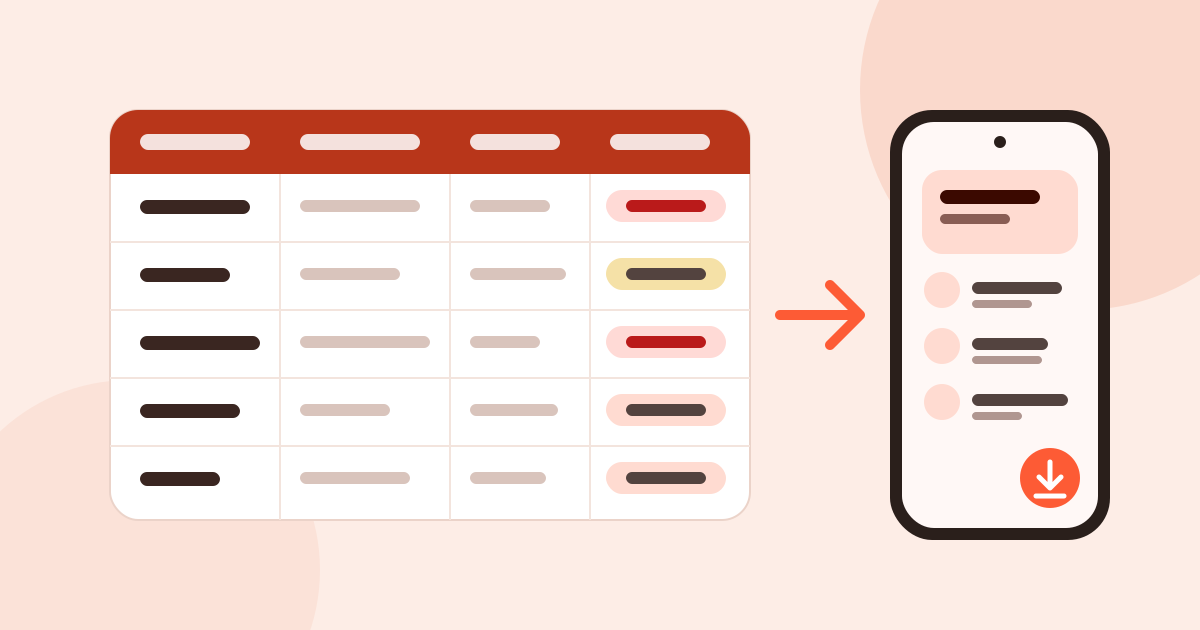
Most customer lists start as a spreadsheet, and there is nothing wrong with that. If you set it up well, knowing how to keep track of customers in Excel gets you further than most paid software for your first hundred customers. This post covers the columns that work, how to make the follow-up date impossible to miss, and where a spreadsheet starts to fail.
How to keep track of customers in Excel: the columns
The more columns you add, the more empty cells you get. The customer list template below is the shortest layout that is enough for someone who sells face to face. Copy the headers into row one.
| Column | What to write | Example |
|---|---|---|
| Company | Short company name | Yildiz Packaging |
| Contact | First and last name | Ayse Demir |
| Title | The person’s role | Purchasing manager |
| Phone | One format, with country code | +90 532 000 00 00 |
| ayse@example.com | ||
| City / district | Useful for planning visits | Izmir / Bornova |
| Status | Pick from a list | Lead, prospect, active, inactive |
| Where you met | Fair, visit, referral | Packaging fair |
| Last contact | Date | 2 Oct 2026 |
| What you discussed | One sentence | Asked for a sample |
| Next follow-up | Date | 9 Oct 2026 |
Two columns do the real work: Last contact and Next follow-up. The rest could live in your phone book. These two tell you who to get back to, and when.
Turn the sheet into a customer follow up tracker
A few settings turn an empty sheet into a customer follow up tracker:
- Format it as a table. Headers get filters, so you can show only “Izmir” or only “lead” in one click.
- Make Status a list. With Data Validation, allow only the values you chose. That way “active”, “Active” and “actve” do not become three different statuses.
- Colour the overdue follow-ups. With Conditional Formatting, paint every row red where
Next follow-up is earlier than
TODAY(). Open the file in the morning and the waiting customers are the red rows. - One row, one company. If you talk to several people at a company, move the people to a second sheet and link them by company name. The same company written on three rows means fixing three places when a phone number changes.
- Do not overwrite contacts. If you clear “What you discussed” every time, the history is gone. To keep it, add a third sheet for contacts: date, company, what happened.
That is enough for a free customer list in Excel. Google Sheets has the same settings.
Where Excel stops working
A spreadsheet is great at a desk. The trouble starts when you meet customers away from it.
- On the road and at fairs. Typing a name, a number and a note into small cells on a phone is slow. Most of the time the business card goes into your pocket with “I will do it tonight”, and tonight something else comes up.
- Nothing reminds you. You have to open the file to see the red rows. On the days you do not open it, overdue follow-ups wait in silence.
- Copies multiply. One version on the laptop, one in an email, one on the phone. Which one was the latest?
- History does not fit in one cell. To find what you promised three months ago, you read note cells one by one.
None of this is Excel’s fault. Excel is a spreadsheet, not a customer book. As the list grows and selling moves away from the desk, a client tracking app free of charge does less work for you to maintain.
Paper notebook, spreadsheet or app
- A paper notebook opens anywhere and needs no battery. But you cannot search it or copy it, and if you lose it, everything is gone.
- A spreadsheet is searchable, filterable and shareable. But it is slow on a phone and it does not remind you.
- A phone app is open where you meet the customer and reminds you when it is time. But you need to know in advance where the data lives and how it gets out.
The last point matters. Before you move to an app, ask: can I get my list back into Excel whenever I want? If you cannot, the app becomes a lock one day.
Where Musteri fits
Musteri takes over where the spreadsheet struggles in the field, and keeps Excel as the way out.
- Records on your phone, offline. Company, contacts, addresses and notes live in one customer record. Scan a business card or read a QR code and the fields arrive filled in. More in the business card scanner post.
- A follow-up date becomes a reminder. The “Next follow-up” column is replaced by a reminder that arrives on your phone, widget and watch when it is due.
- History stays. Notes, calls, visits and fairs sit in order on the customer’s timeline.
- Search that knows Turkish. Type “sisli” and “Şişli” is found; type “igdir” and “Iğdır” is found.
- The way back to Excel is always open. In Settings you export all your customers and contacts as CSV, free and unlimited. The customer file has name, title, status, sector, tax office and number, phone, email, web, tags and address columns; the contact file has first name, last name, company, title, department, phones and emails. The files open in Excel, Numbers and Google Sheets. You can also export contacts as vCard into your phone’s contacts.
One thing, plainly: today Musteri has no bulk import from an Excel or CSV file. You add records one by one, from a business card or by picking from your phone contacts. So if you have a long spreadsheet, do not delete it. Start with your active customers and keep the rest in the sheet.
Musteri is free, and nothing you save is locked behind a paid plan. What to look for in a “free” app is in free CRM app: what free should really include; the limits of the free plan are on the pricing page.
In short
- Eleven columns are enough for a customer list; the two that matter most are Last contact and Next follow-up.
- Filters, Data Validation and Conditional Formatting turn the sheet into a tracker.
- A spreadsheet struggles on the road, with reminders and with history; a phone app helps there.
- Whichever app you pick, make sure you can get your list back into Excel.